
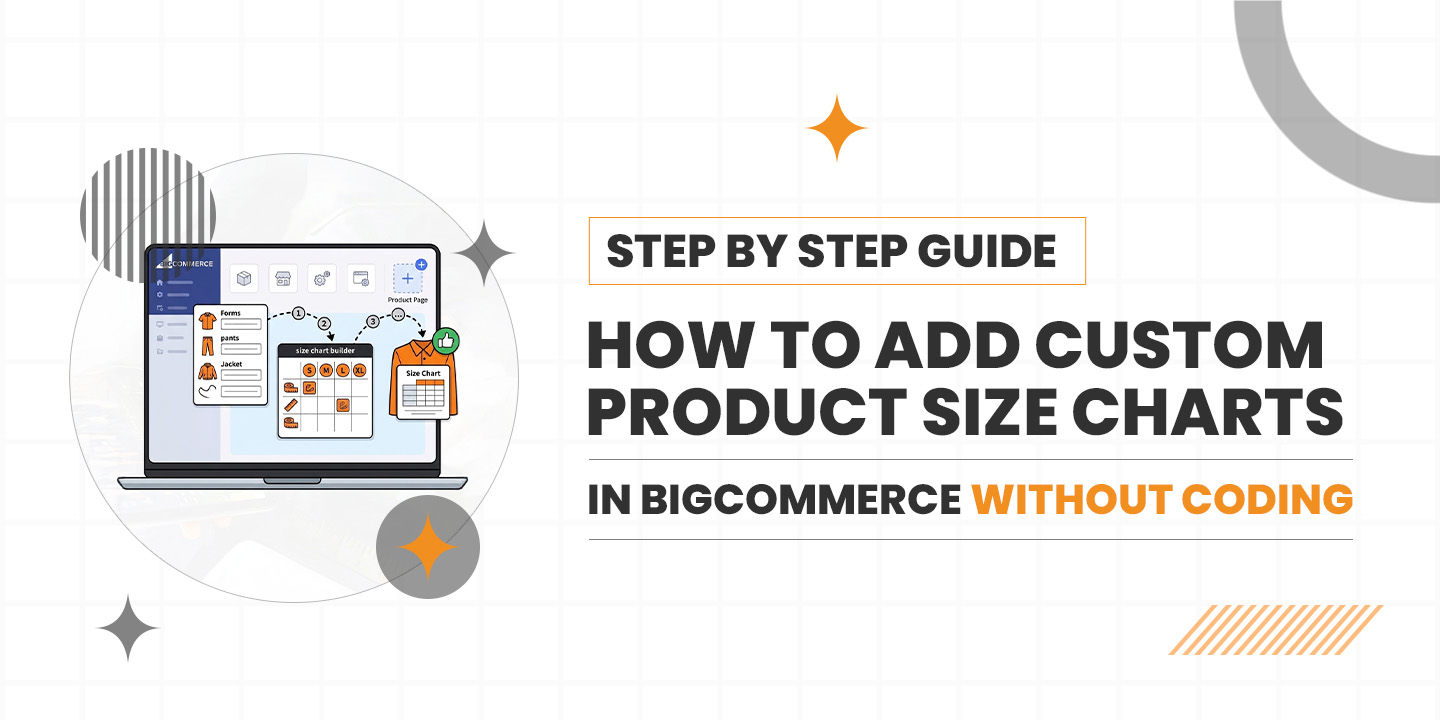
Imagine this: You’ve spent weeks perfecting your apparel line. The fabric is right, the photography is stunning, and the marketing is finally bringing people to your BigCommerce store. A customer finds a jacket they love, they hover over the “Add to Cart” button, but then they pause.
“Is a Medium going to fit me, or should I go Large?”
Without a clear answer, they close the tab. That’s a lost sale, and in the competitive world of e-commerce in 2026, those lost moments add up fast. Most store owners think they need to be a coding wizard or pay a developer hundreds of dollars to fix this. Good news: you don’t. You can actually add a size chart to the BigCommerce product page without touching a single line of CSS or HTML.
Let’s walk through how to get this done so your customers can shop with total confidence.
Why Size Charts Are Your Best Salesperson
In the fashion and gear world, a size chart isn’t just a utility; it’s a trust builder. When you provide a Custom size chart BigCommerce users can rely on, you’re doing two things:
- Reducing the “will it fit?” anxiety.
- Slashing your return rates (which kills your margins).
Google’s SGE (Search Generative Experience) now looks for “helpful content” that solves user problems directly. By having a clear, accessible size guide, you’re telling search engines that your store provides a great user experience.
The Secret Sauce: Using a BigCommerce Size Chart App
While you could try to build a table in the product description editor, it usually ends up looking messy on mobile. The easiest way to get a professional look is to use a dedicated BigCommerce Size Chart App.
These apps act like a “plug and play” system. You install it, pick a design, and it handles the heavy lifting. Here is the step-by-step roadmap to getting your charts live today.
Step 1: Choosing the Right Tool
Head over to the BigCommerce App Marketplace. You’ll find several options, but you want to look for a BigCommerce apparel size chart app that specifically mentions “no-code” and “mobile responsive.”
A good BigCommerce size guide app should allow you to:
- Create different charts for different categories (Men’s, Women’s, Accessories).
- Use a size chart pop-up BigCommerce feature so it doesn’t clutter the page.
- Handle the bulk size chart assignment for BigCommerce so you don’t have to manually add it to 500 different shirts.
Step 2: Creating Your First Chart
Once you’ve picked your BigCommerce clothing size chart app, open the dashboard. Usually, you’ll start by creating a “Template.”
Instead of starting from zero, most apps give you presets. If you’re selling t-shirts, pick the t-shirt preset. You can then edit the measurements to match your specific brand. This is where you create that Custom size guide BigCommerce shoppers appreciate. Pro tip: Include both inches and centimeters to help your international buyers.
Step 3: Design for the Eyes (and Fingers)
In 2026, almost everyone is shopping on their phone while waiting for coffee. If your chart is a giant, unreadable image, people will leave.
This is why a responsive size chart, the BigCommerce tool, is vital. It adjusts the table to fit the screen. When designing, keep the colors simple and make sure the “Size Guide” link is placed right next to the size selection dropdown. Using a size chart plugin, BigCommerce makes this placement automatic.
Step 4: The Magic of Bulk Assignment
Imagine having to click every single product to attach a chart. Nobody has time for that. Look for the bulk size chart assignment BigCommerce feature within your app.
You can usually set “Rules.” For example: “Apply the ‘Summer Dress’ size chart to every product in the ‘Dresses’ category.” Just like that, your whole store is updated in seconds. This is the most efficient way to add a size chart to a BigCommerce store without losing your mind.
Step 5: Testing the “Size Chart Popup BigCommerce” Experience
Before you go live, check a product page. Click the link. Does the size chart pop-up BigCommerce load quickly? Is it easy to close?
The popup style is usually better than an inline table because it keeps the product page clean and focused on the “Buy” button. If it looks good, you’re ready to start converting those hesitant browsers into buyers.
Leveling Up Your Store Strategy
Using a BigCommerce product size chart tool is a small change that yields big results. But don’t stop there.
Why SGE Cares About Your Size Guide
Search engines are getting smarter. When someone searches for “best fitting yoga pants,” Google wants to recommend stores that actually help the user find their fit. By using a BigCommerce size chart integration, you are adding structured data to your site. This helps AI-driven search results understand that you are a high-quality, reliable merchant.
Beyond the Basics: BigCommerce Clothing Size Chart Tool
If you sell more than just clothes, like hats, shoes, or even pet gear, your BigCommerce clothing size chart tool can usually be adapted. A Custom size chart, BigCommerce isn’t restricted to “Small, Medium, Large.” You can create charts for “Neck Circumference” or “Insole Length.” The more specific you are, the more your customers will trust you.
Conclusion: Stop Coding, Start Selling
The era of needing a developer for every small change is over. By leveraging a BigCommerce size chart app, you give your customers the tools they need to make a fast decision.
It keeps your site looking professional, helps your SEO rankings in an SGE world, and most importantly, it makes life easier for your shoppers. So, head to the marketplace, find a BigCommerce size guide app that fits your vibe, and get those charts live. Your return folder (and your customers) will thank you.