App Overview
Name : Easy Size Chart
Description : The Easy Size Chart allows BigCommerce merchants to create, manage, and display size charts for products, categories, or brands.
Features:
- Assign size charts to one or multiple products, categories, and brands
- Add text, tables, and images for size charts
- Exclude selected products from Brands and Categories
- Display size charts in product detail pages with a popup
- Free access with merchant-level admin panel
Installation Guide
Step 1 - Install from Marketplace
- Go to BigCommerce Marketplace.
- Search for ' Easy Size Chart'.
- Click Install and authorize the app.
Step 2 - Connect Store
- Upon installation, you'll be redirected to the authorization page.
- Click Authorize to allow the app to access store data.
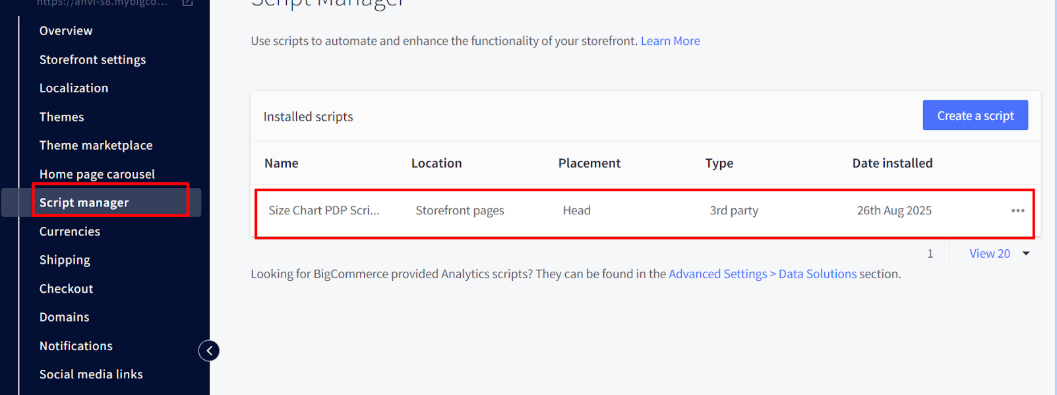
Step 3 - A script will be Created in Script Manager
Usage Guide
Creating a Size Chart
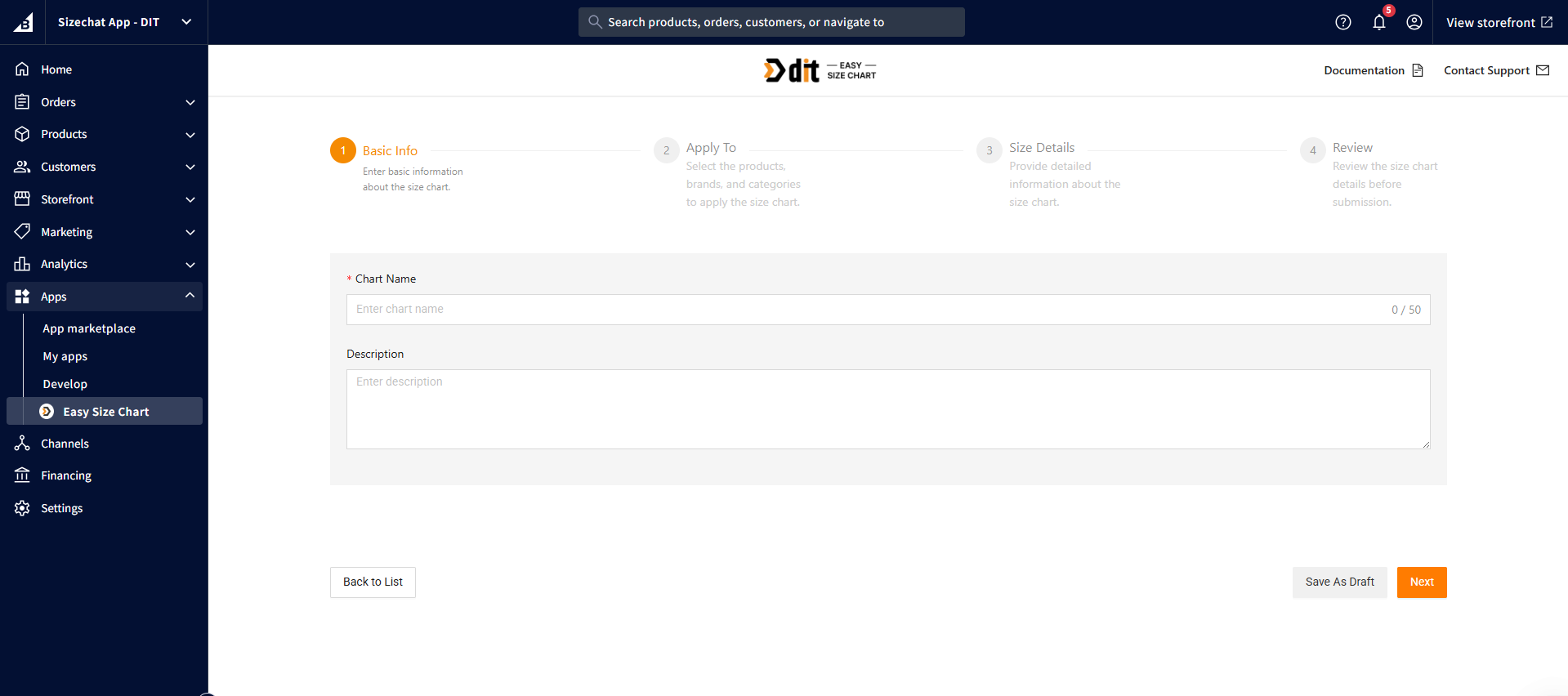
- Navigate to Easy Size Chart -> Create New.

- Enter the size chart Name and Description, then click Next.
- Assign the size chart to Products, Categories, and Brands.
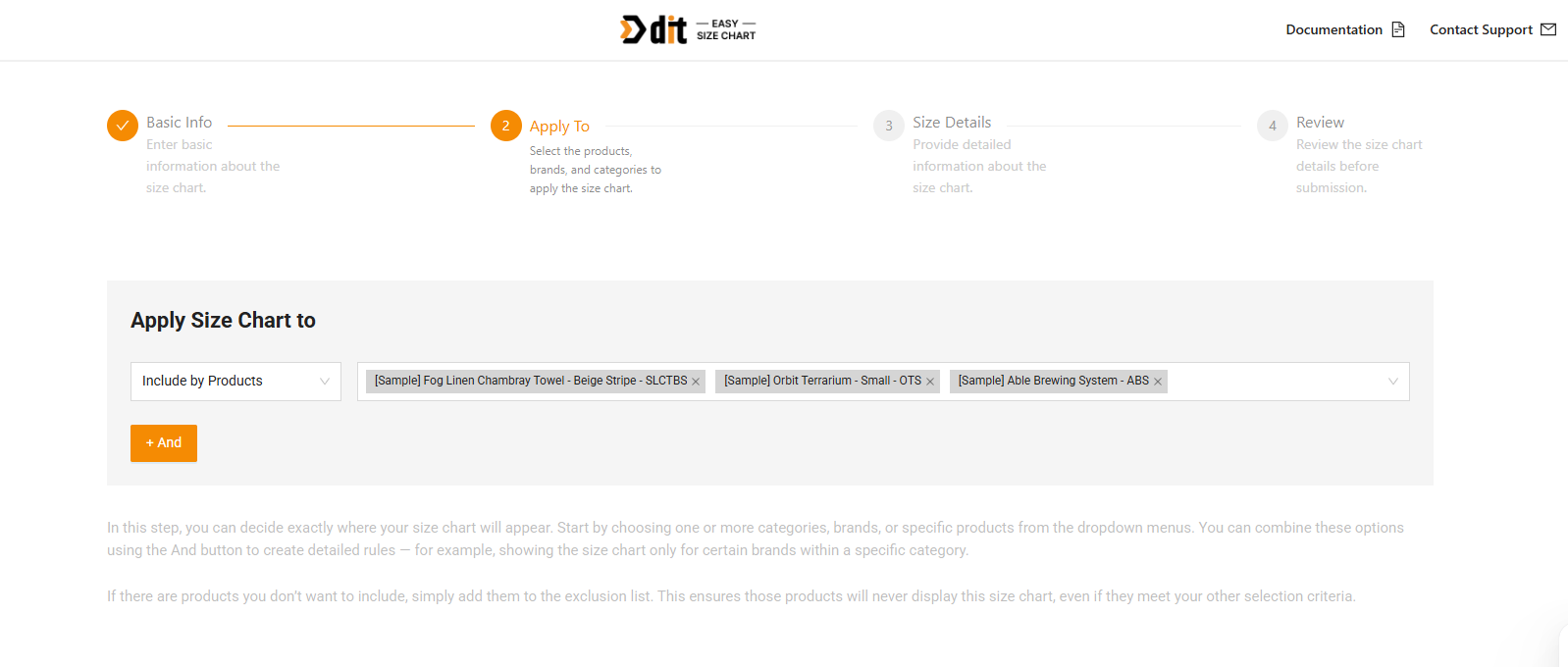
- Add any Products to Exclude from the selected brands and categories, then click Next.
- Use the editor to customize your size chart as you need:
- Add table rows/columns for sizes
- Upload reference images
- Add description text
- Insert dividers
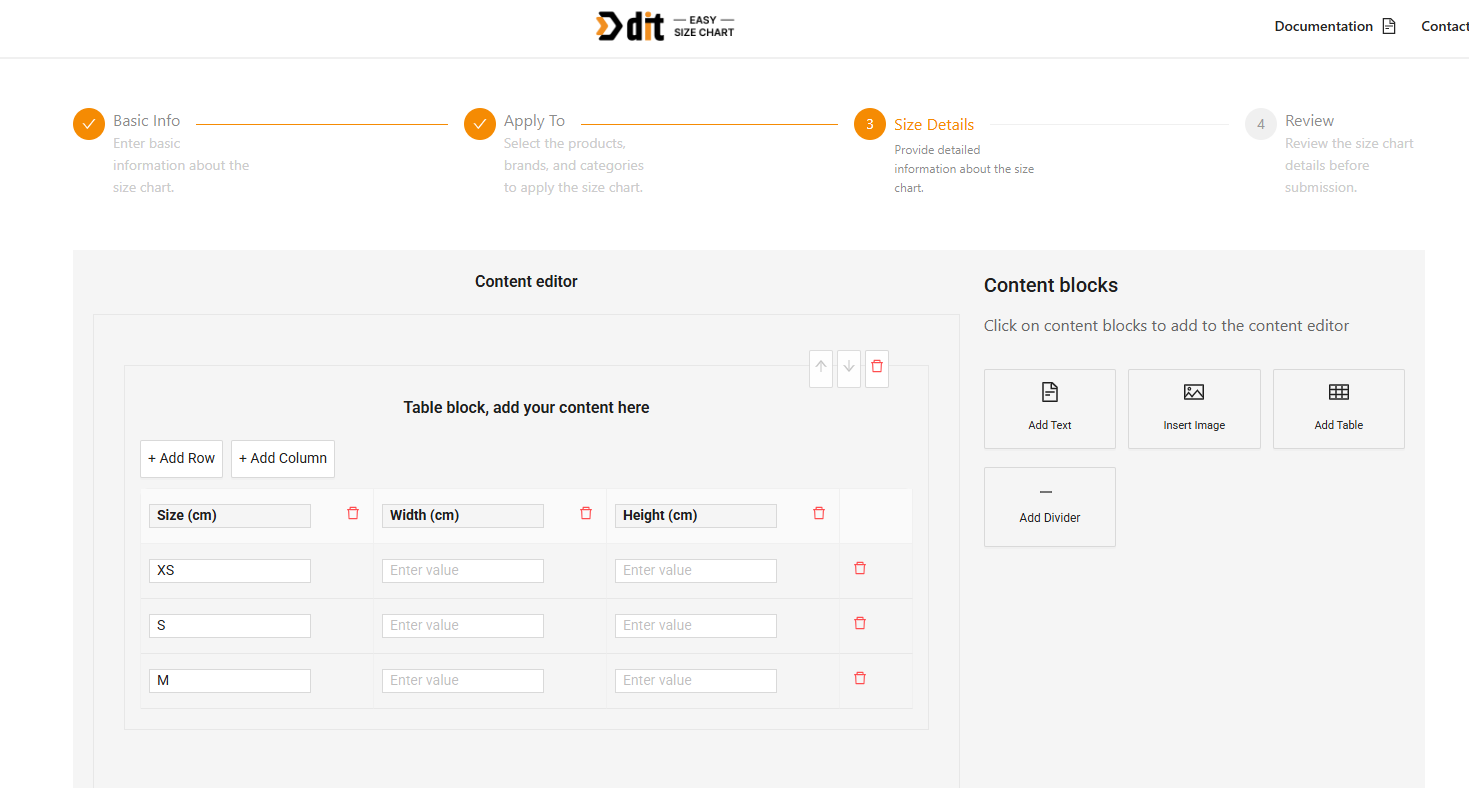
(This step can be done entirely based on how you want your size chart to appear)
- Click Next to review all details.

- Click Create Size Chart to save.
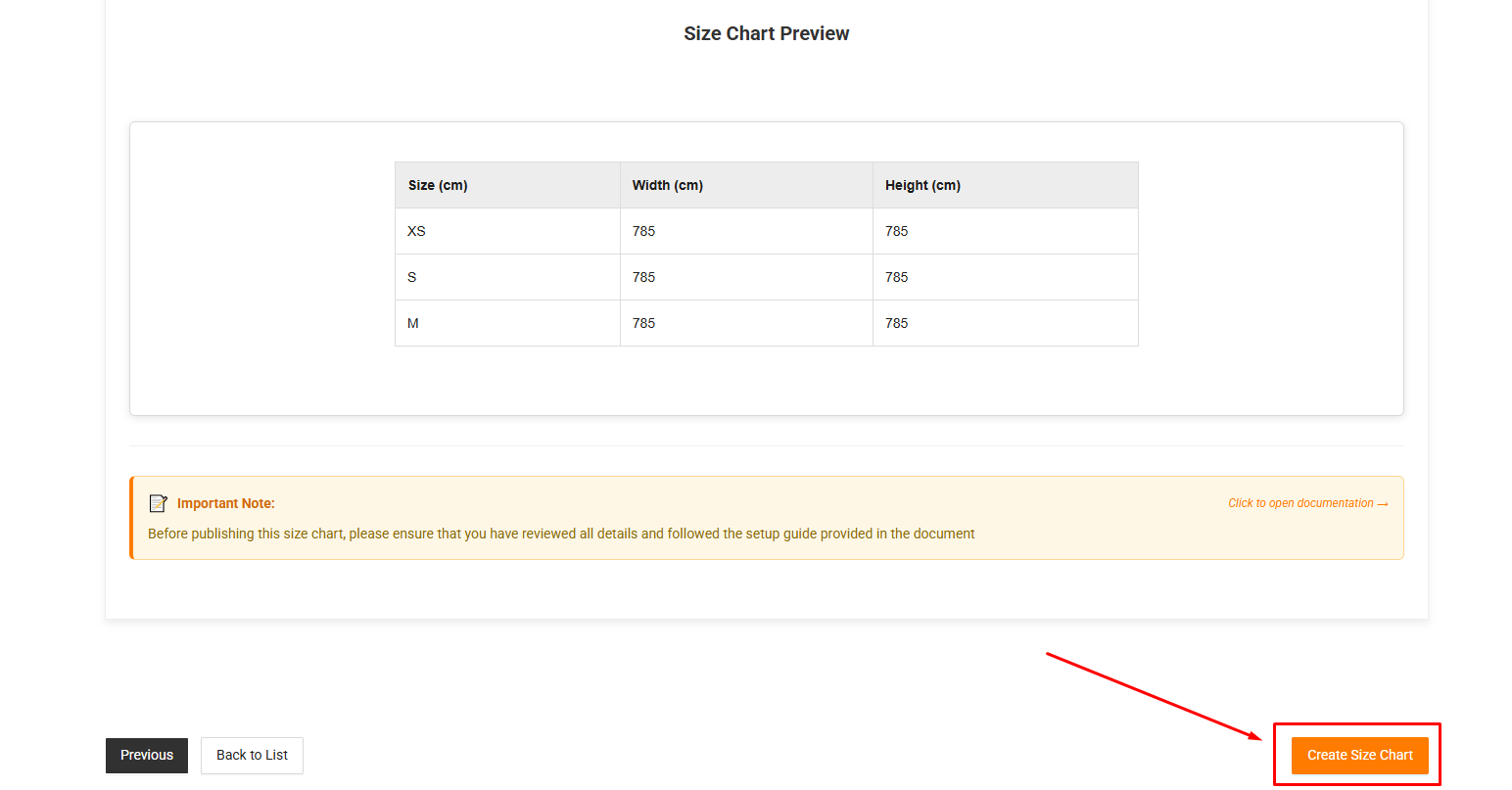
Note: While creating or editing, choose which products, categories, and brands should display this size chart.
Displaying on Storefront
Once the app is installed and a size chart is created, a "Size Chart" button will automatically appear below the Add to Cart button on the product page. When clicked, a popup will open showing the size chart details.
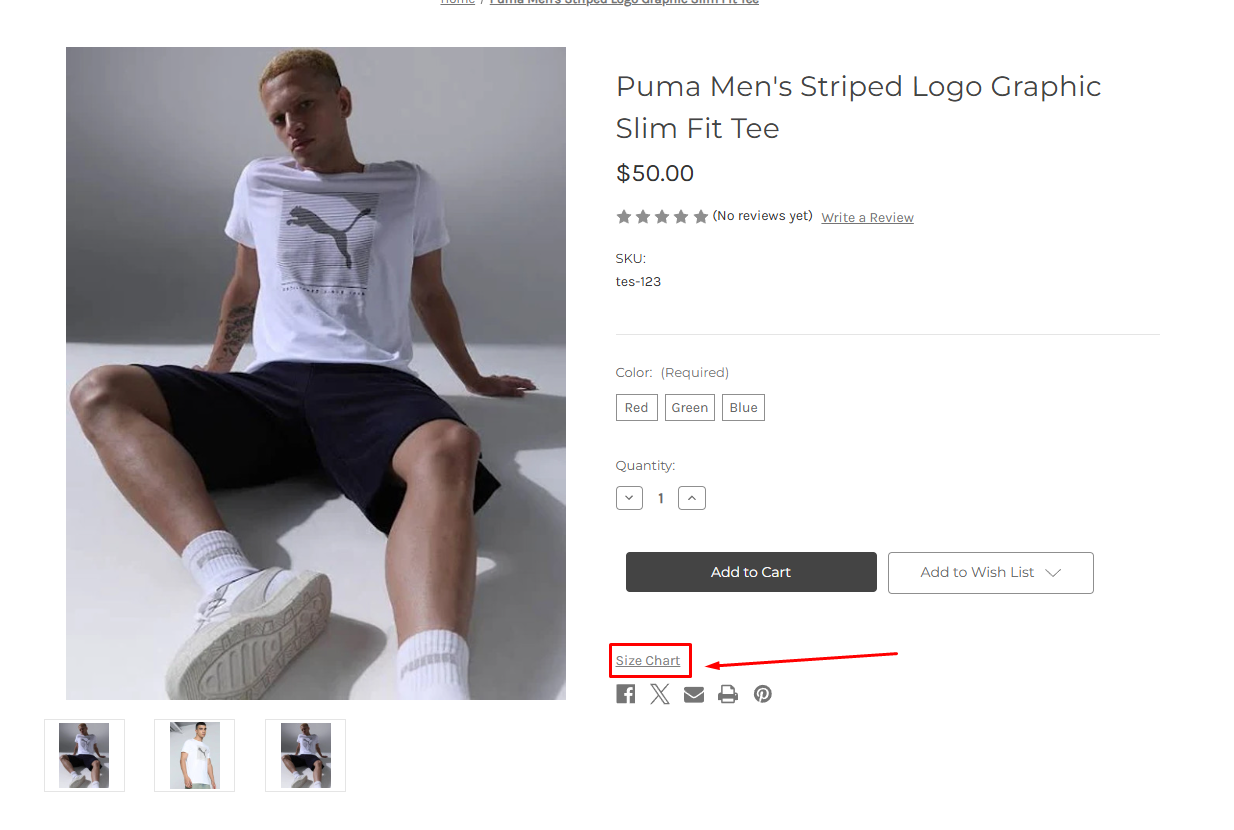
Customizing Button Text or Placement
If you want to change the text of the button or adjust its placement on the product page, you can manually add the following code in your product-view.html file at the location you prefer:
<div data-sizechart-product-id="{{product.id}}" class="dit-chartX" style="display:none;">Size Chart</div>
{{product.id}} -> Automatically replaced with the BigCommerce product ID.
You can change the button label "Size Chart" to any text you like.
Keep the data-sizechart-product-id and class="dit-chartX" exactly as is.
By default, no extra setup is needed - the button shows up automatically. Manual insertion is only required if you want custom placement or custom button text.
How to Create a Size Chart
Troubleshooting
Issue: Size chart not showing on product page
- Verify that the product is assigned to a size chart.
- Confirm that the script is created in Script Manager.
- Check the size chart status and ensure it is Active.
- Make sure the placeholder <div> (as shown above) is added in product-view.html
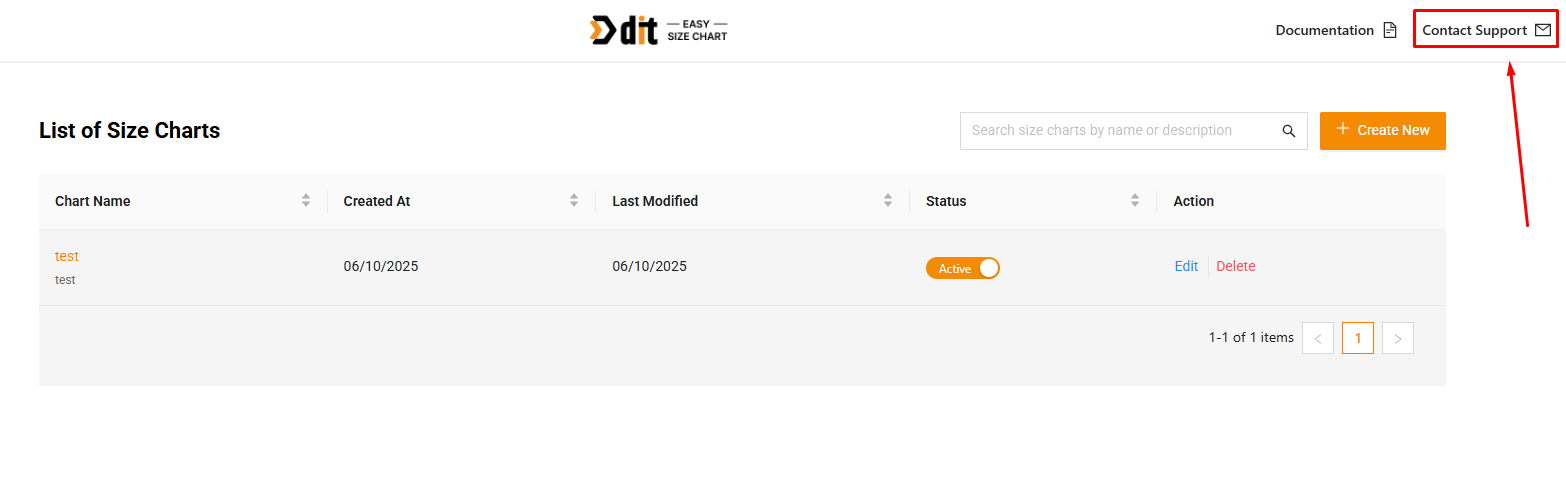
If the issue still persists, please contact us at appsupport@ditinteractive.com or raise a ticket through the app by filling out the Contact Support form.